Data Category Management
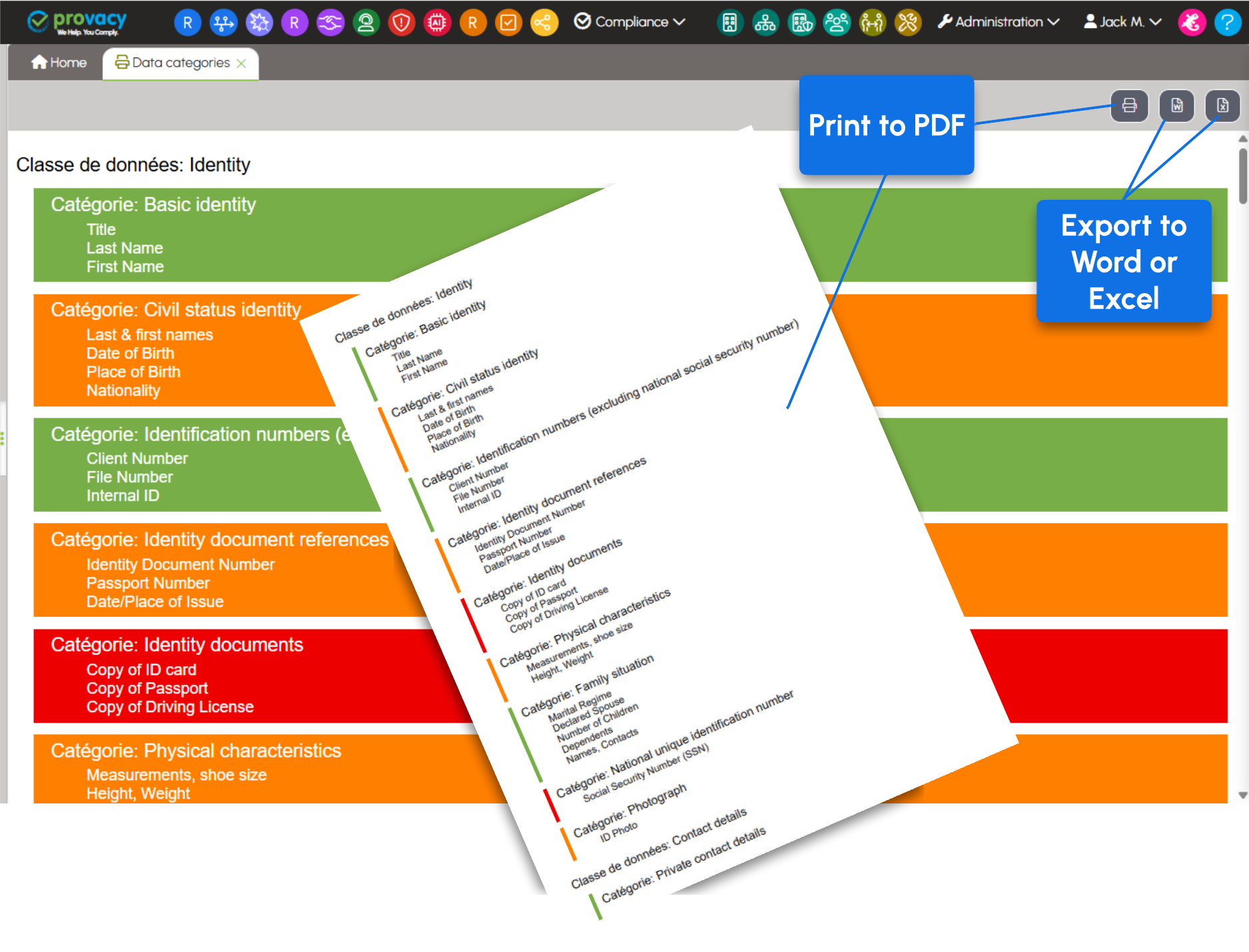
Print or Excel Export
You can print the list of data categories from the Compliance > Utilities > Data Categories menu, or export it to Word or Excel format.
Data Organization
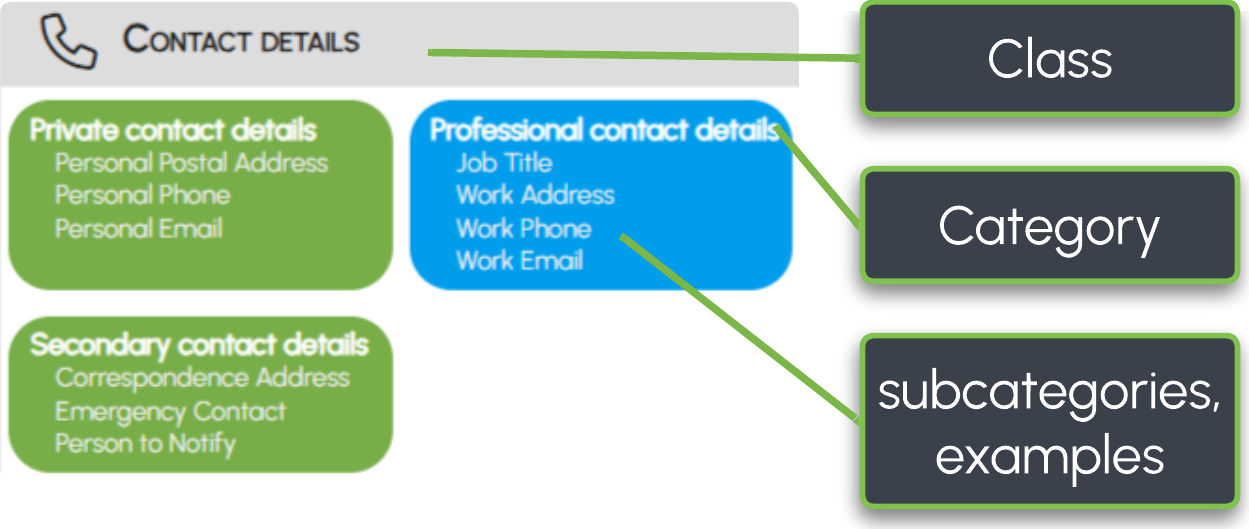
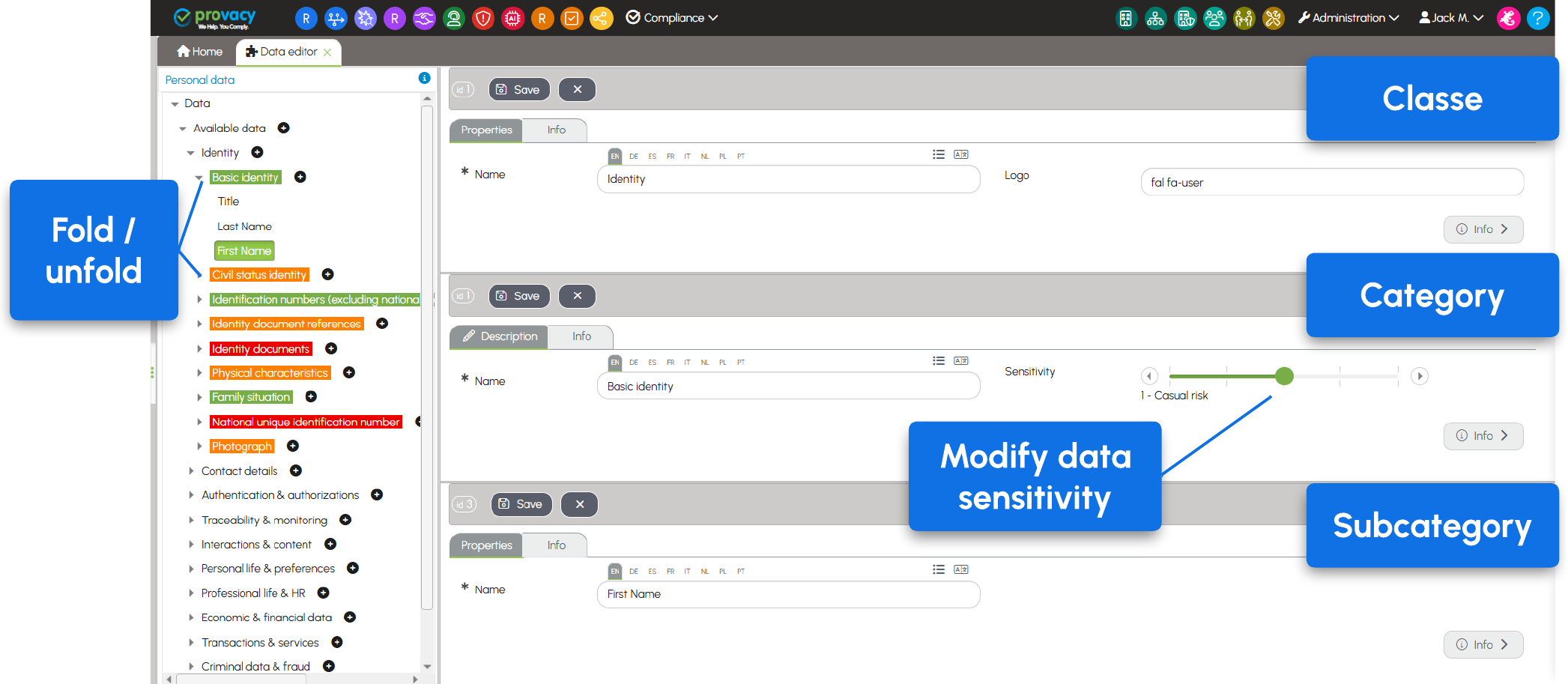
Data is organized into three levels: data classes, data categories, and subcategories (or details).
When you open the Data Category Editor from the Administration menu, the data tree appears on the left side of the screen.
Select, for example, First Name. The three levels are displayed in the center of the screen:
- the data class: Identity;
- the data category: Basic Identity;
- the subcategory: First Name.
Edit a Data Class, Category, or Subcategory
Select the item you want to edit in the data tree, update its label in the right-hand section of the screen, and save your changes. You can also modify the data category's sensitivity using the slider.
⚠️ Important: if you modify a data category or subcategory already used in Processing Activity records, the change will only be reflected in the records after they have been opened in Edit mode. As a result, records already published in registers will not reflect the change until a new version is created.
🌐 Multilingual instances: if you modify a label, remember to provide its translation in the other available languages.
Create a Data Class, Category, or Subcategory
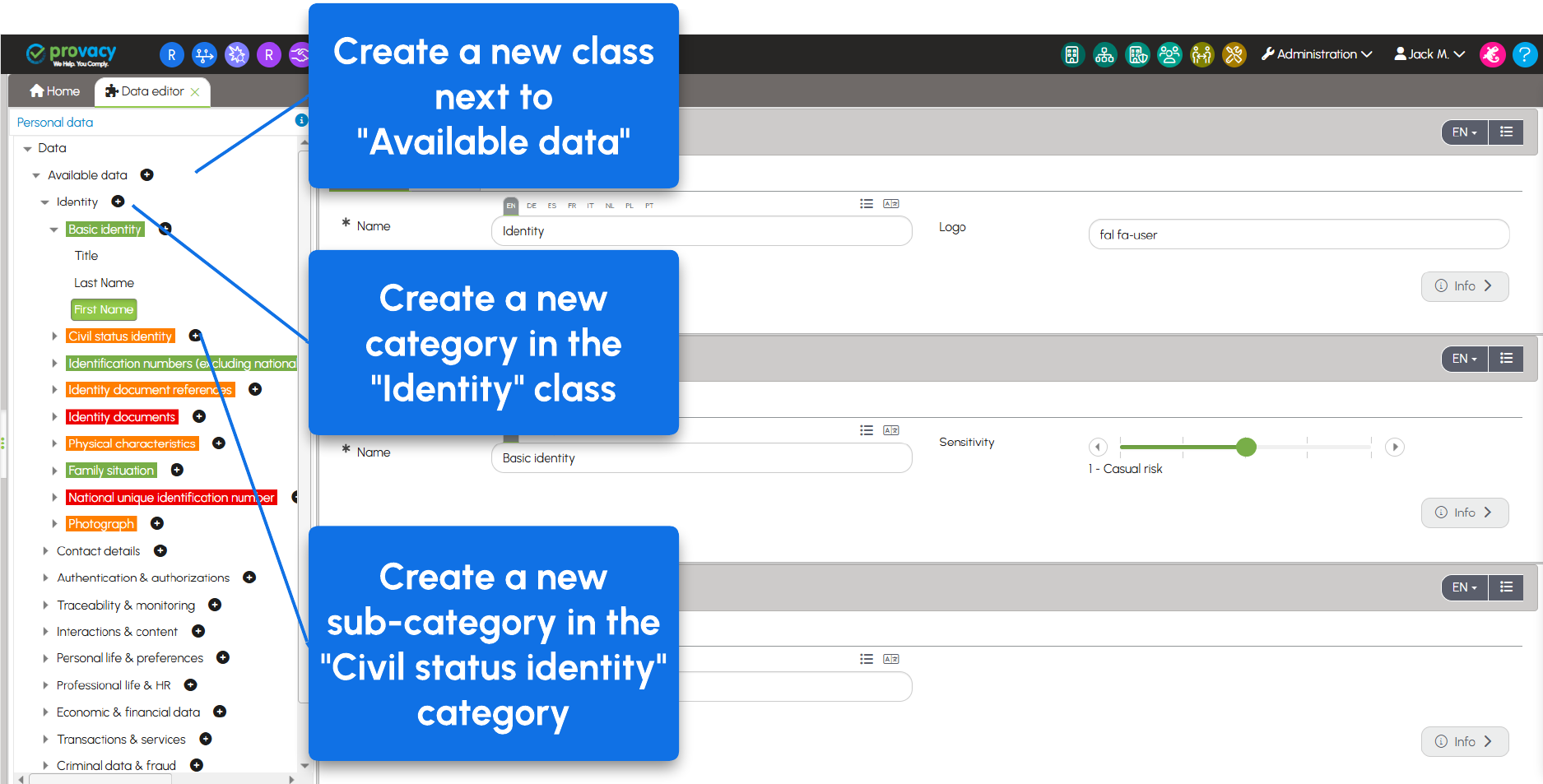
- To create a data class, click the + next to Available Data.
- To create a data category, click the + next to the relevant data class.
- To create a subcategory, click the + next to the relevant data category.
You can associate an icon with each data class. Contact Support to obtain the catalog of available icons.
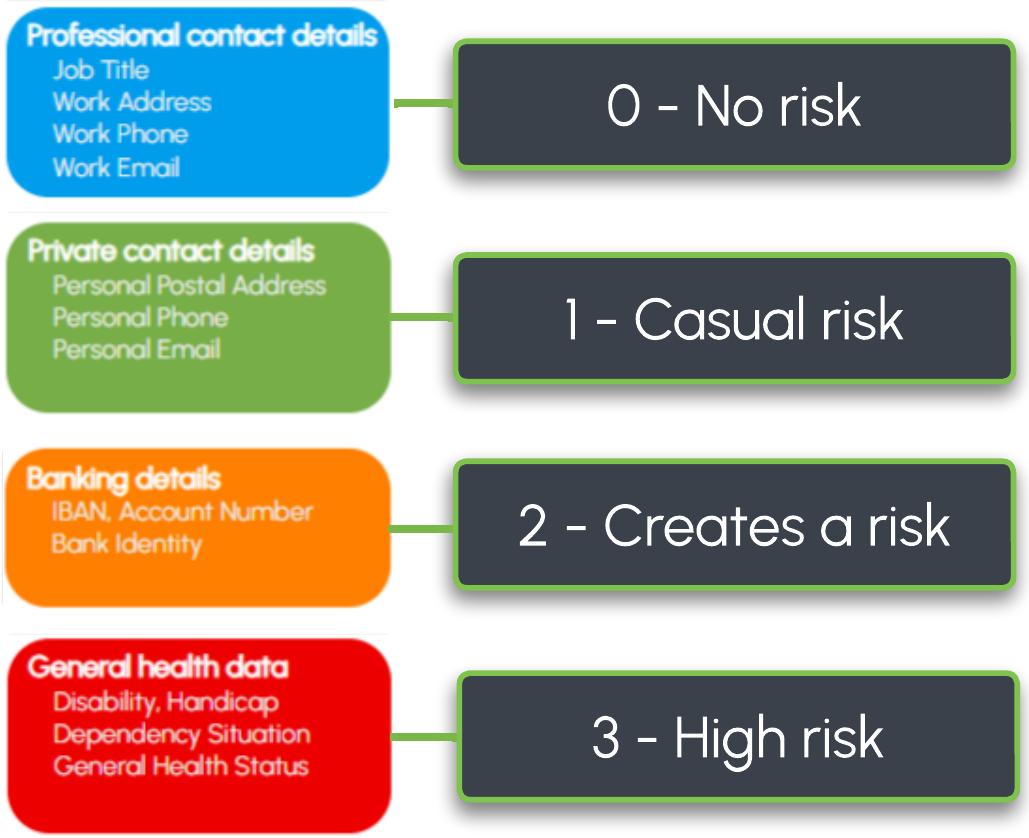
The sensitivity level of a category is defined using the slider:
Remember to save your changes after each creation or modification.
⚠️ Important: a data category must contain at least one subcategory to be displayed and used in forms.
For multilingual instances, expand the translation fields to enter the labels in the other available languages.
Organize or Disable Categories
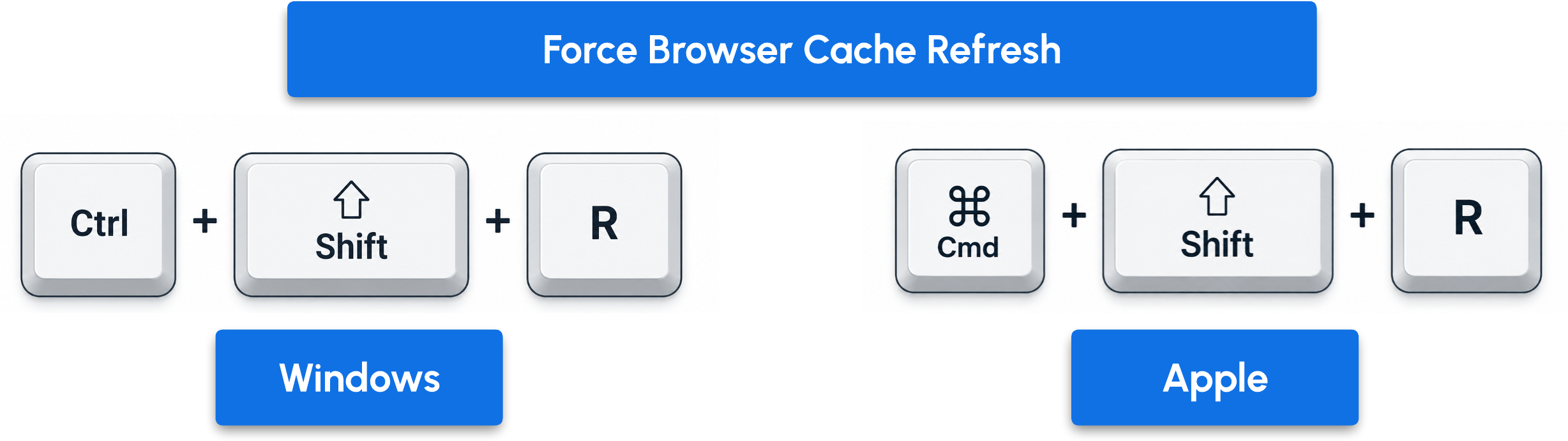
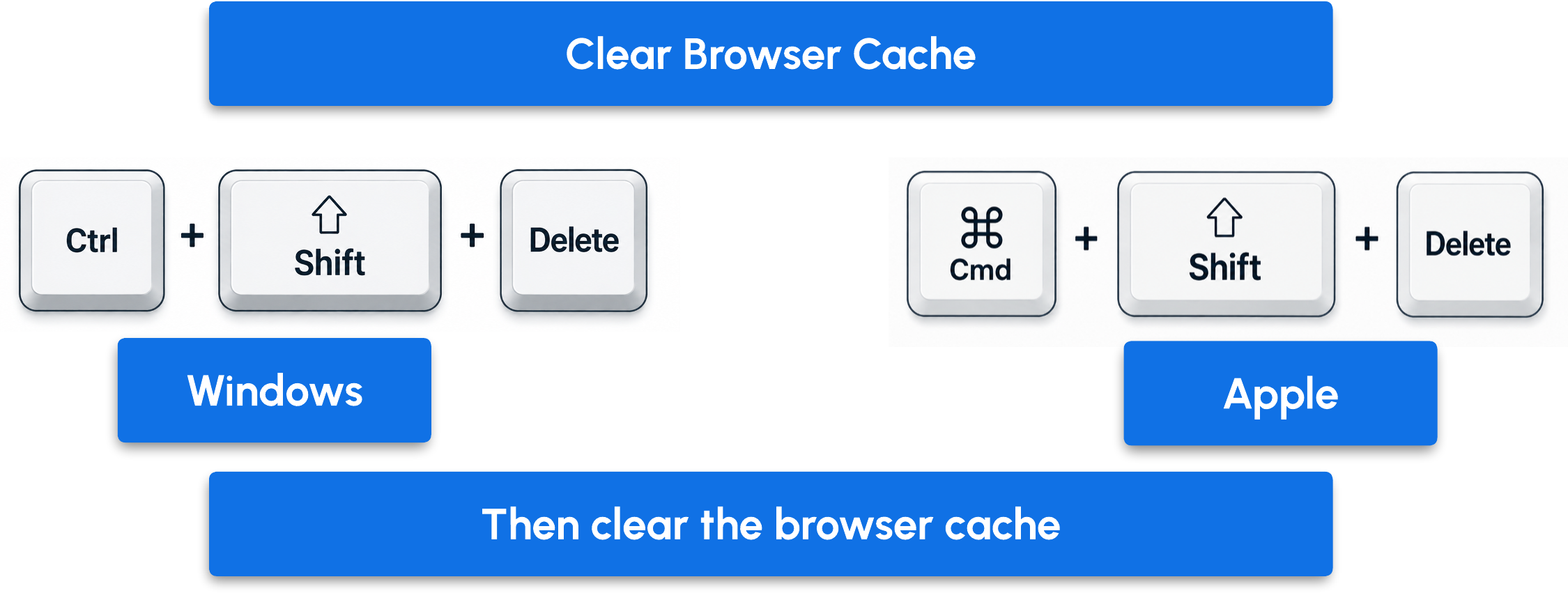
⚠️ Important: for your changes to take effect in the forms, force a browser refresh using the Ctrl + Shift + R shortcut. If your changes are not displayed, clear your browser cache.