
Using Zeus
1. Ask a regulatory question
Zeus can help you find and understand information relating to the GDPR, as well as other regulations and laws, including foreign data protection laws.
You can also present Zeus with a specific case and ask it to help you analyse it.
For a more reliable answer and to enable you to verify the information provided, don’t hesitate to ask Zeus to provide sources for its answers.
For example:
What are the requirements for retaining personal data after the end of a contract? Can you provide sources for your answer?
2. Search for processing activities
Zeus can search for information across all Provacy records using the words or phrases you provide.
For example, you can ask it:
Can you search for processing activities containing “video surveillance”?
or:
Can you search for processing activities containing the term “subscription”?
You can also use the AND and OR operators to refine your search:
Search for the terms “xxx” AND “yyy”.
Zeus will then search for records containing both terms.
Search for the terms “xxx” OR “yyy”.
Zeus will then search for records containing either of the two terms.
The search covers all text fields across all your records, including:
- processing activities;
- processor contracts;
- data subject rights requests;
- data breaches;
- AI systems;
- action plans;
- software & tools;
- third parties.
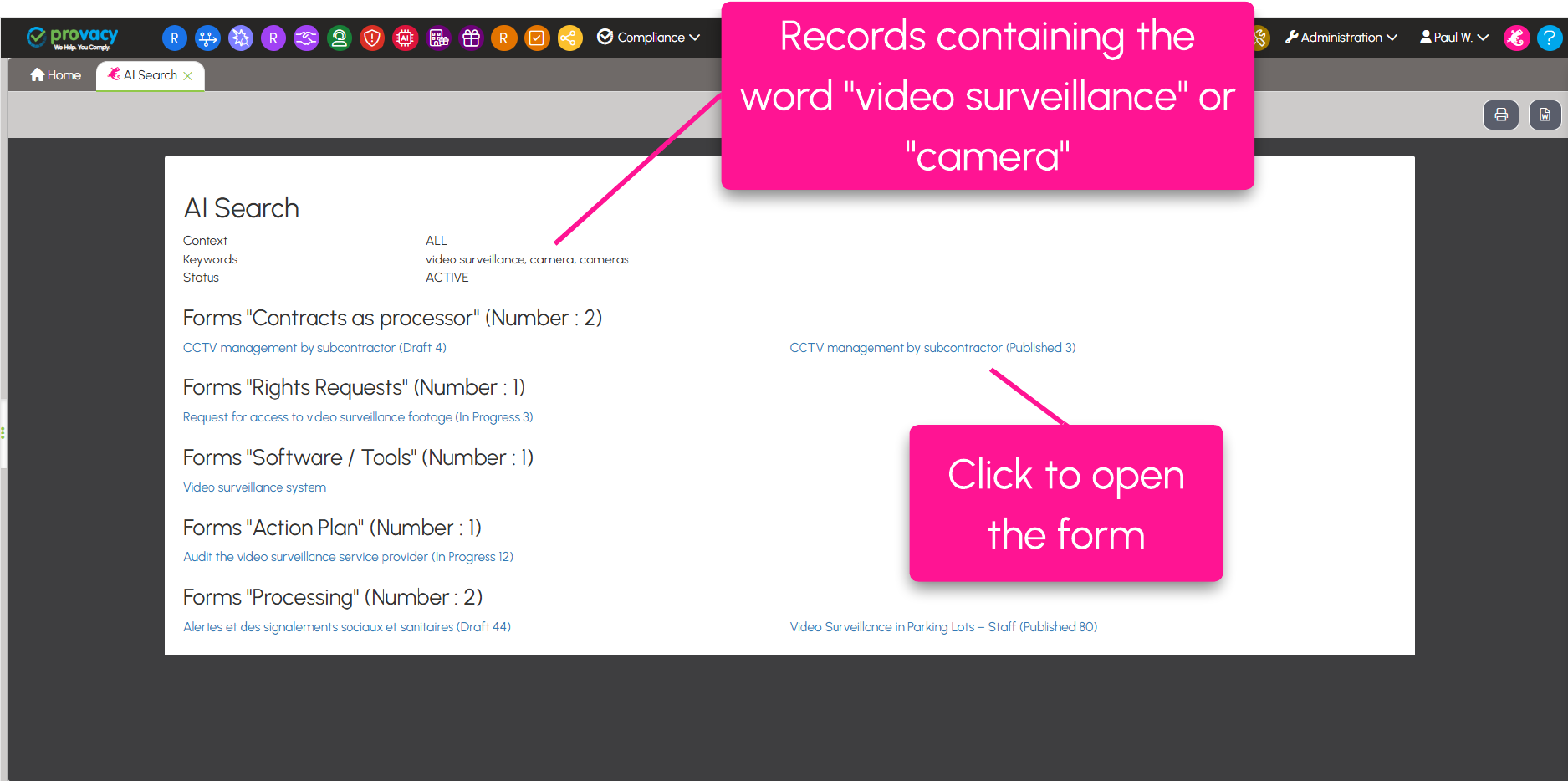
The results are displayed on a new page. Zeus counts and categorises the records by menu and indicates, for each result:
- the record title;
- its status;
- its ID.
The record titles are clickable, allowing you to access the corresponding record directly.
3. Create a record
Zeus can create three types of records:
- processing activities carried out as a data controller;
- processing activities carried out as a data processor;
- action plans.
Provide as much context as possible
To obtain a properly completed record, provide Zeus with as much context as possible in your request and specify that you want to create a record.
For example, you can describe the processing activity, its purposes, the data involved, the data subjects, the recipients, or the retention period.
The record is not created immediately.
Zeus first presents you with a draft containing the various fields it can access.
You can then refine the draft before confirming its creation.
For example:
Could you provide the purposes in list form, using action verbs?
Once the draft has been confirmed, the record is created and displayed on screen.
Processing activities carried out as a data processor
When you want to create a processing activity carried out as a data processor, make this clear in your request. This enables Zeus to create the record in the correct menu.
4. Analyze a record
You can ask Zeus to analyse a record using its ID.
For example:
Can you analyse processing activity record no. 20?
Zeus then presents the information contained in the record.
Before this information is sent to the AI assistant, you are asked to confirm:
“Do you confirm sending the data to the AI assistant?”
You can choose Send or Cancel.
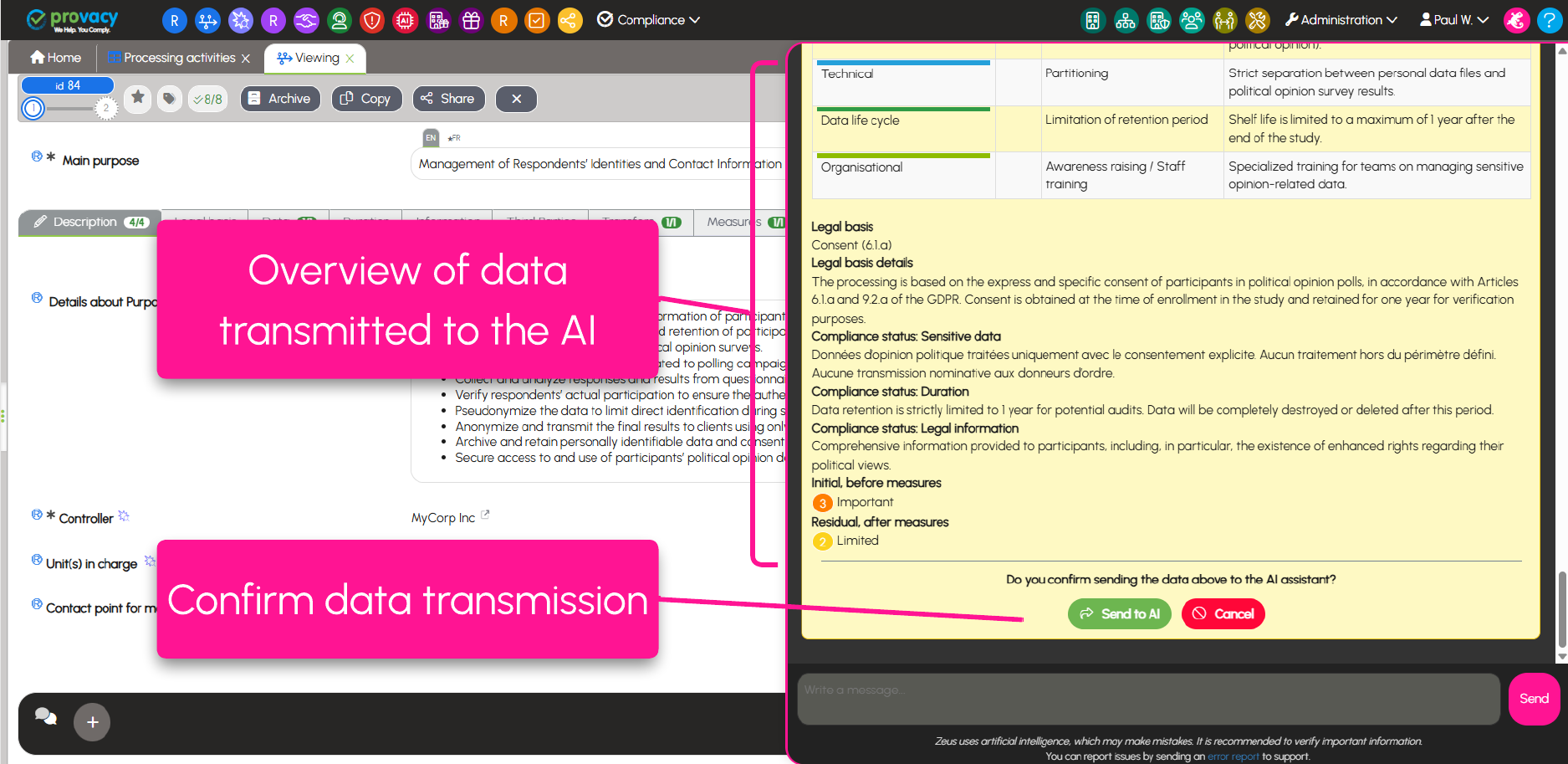
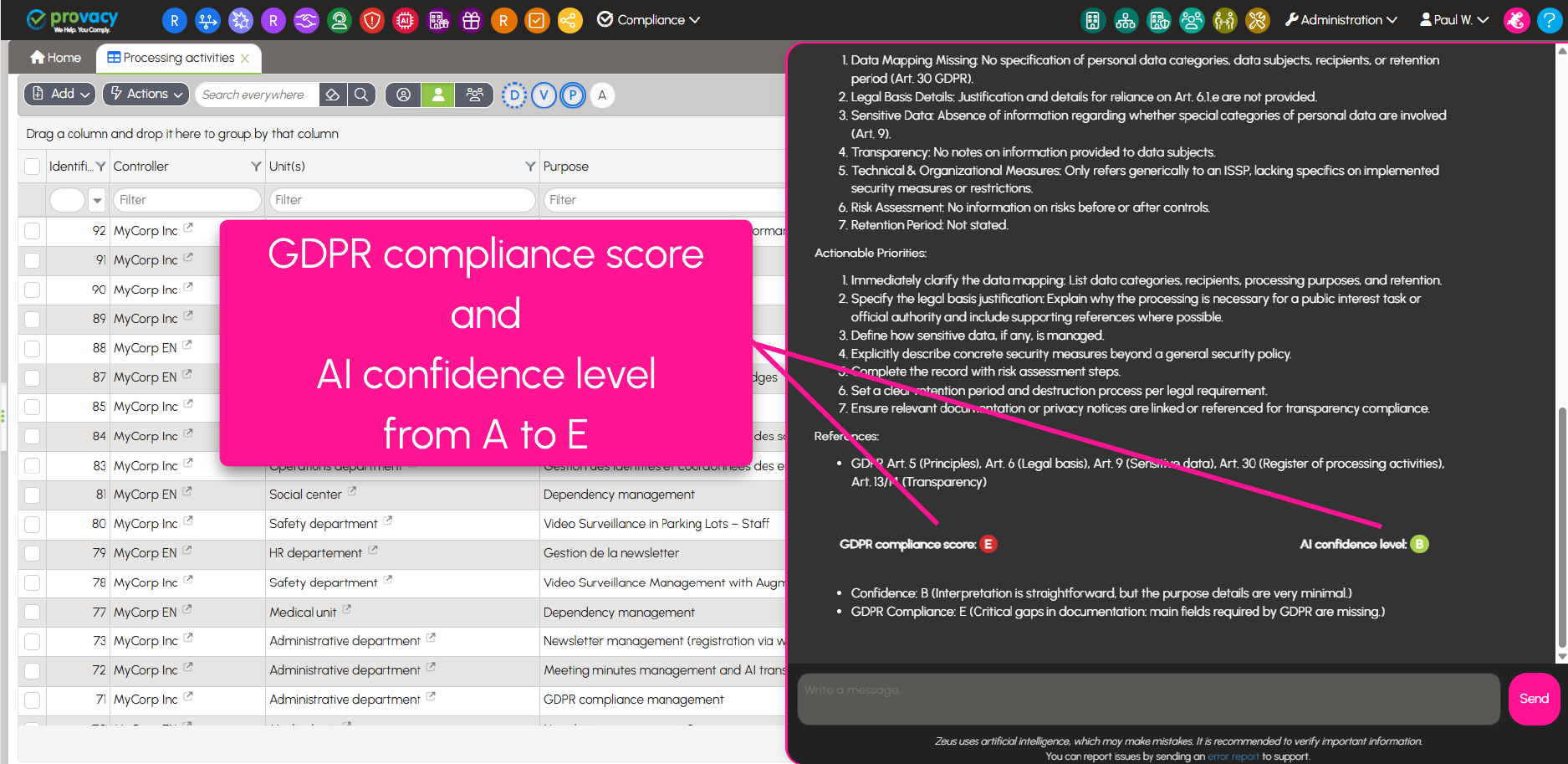
If you confirm, Zeus presents its analysis and provides two scores.
GDPR compliance score
This score assesses the compliance of the record on a scale from A to E:
- A : very good;
- E : very poor.
AI confidence level
This score indicates Zeus’s level of confidence in its understanding of the information provided.
Again, the scale ranges from A to E.
- A: very high-quality information provided;
- E: Poor-quality information provided.
5. Compare records
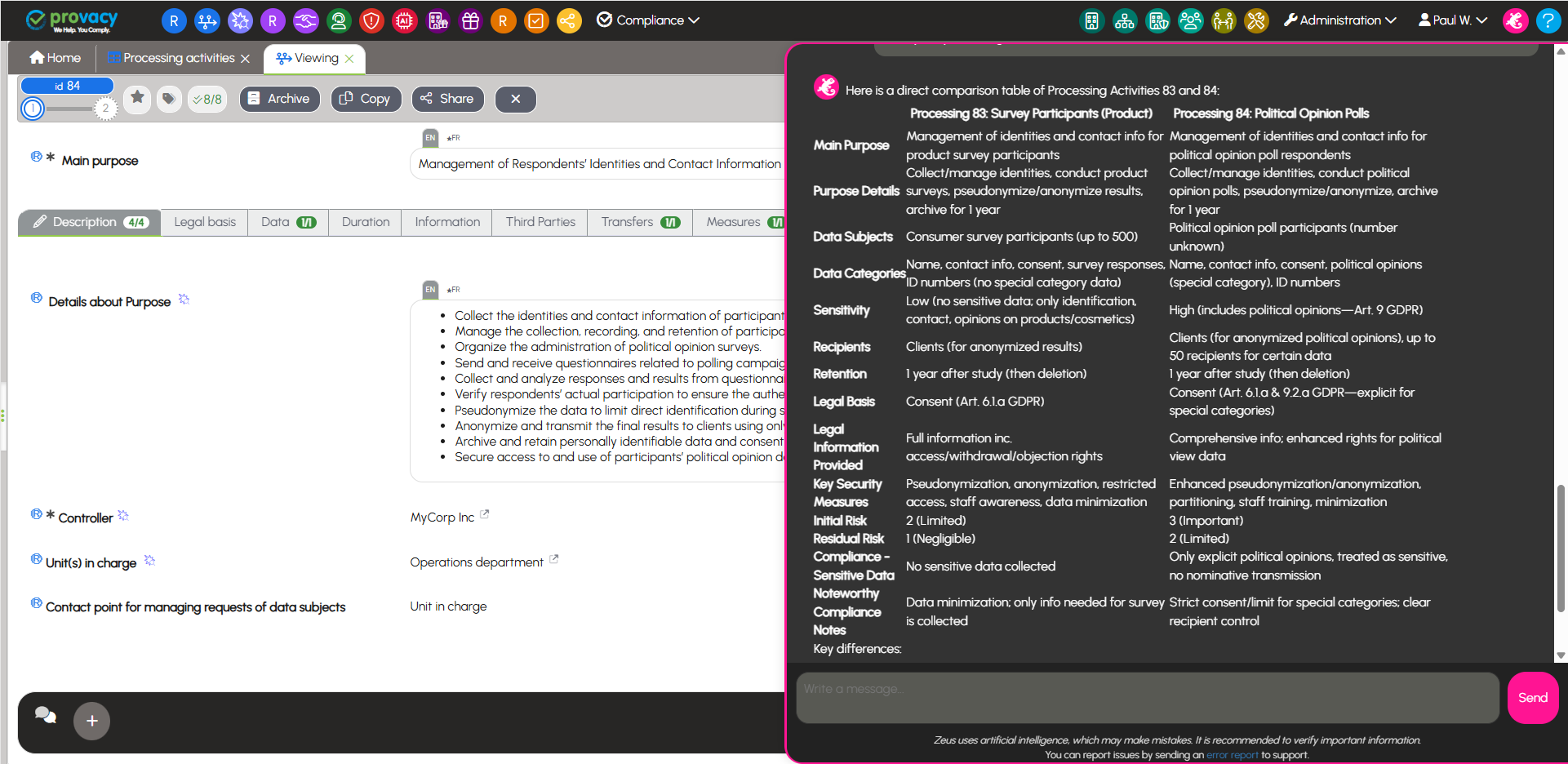
Zeus can also compare multiple records.
For example:
Can you compare processing activity records 78 and 80 in a table?
As with analysing a record, Zeus asks you to confirm that the information can be sent to the AI assistant before transmitting it.
After confirmation, Zeus performs the requested comparison.
6. Edit a record
You can ask Zeus to modify certain information in a record.
Pour que Zeus puisse intervenir, la fiche doit être en mode consultation et non en mode modification.
For example:
Correct the retention period for record 78: one rolling month from the date of entry.
Zeus then presents the change it intends to make.
A confirmation is required before any changes are made to the record.
7. Create an action plan
Zeus can create an action plan linked to a processing activity record.
In your request, specify the relevant processing activity record and, if necessary, describe the actions to be carried out.
You can also specify:
- the start date;
- the target date;
- the priority level.
When the action plan is created from a processing activity record, it is created with the same data controller and the same departments as the processing activity record.
For example:
Create an action plan linked to processing activity record 78 to implement an access rights review procedure. The start date is 1 September and the target date is 30 September. High priority.
Zeus presents its proposal before creating the action plan.
8. Error report
You can report a problem directly from the Zeus interface by clicking “Error report”.
A “Report a problem” window opens, allowing you to describe the issue you encountered in detail.
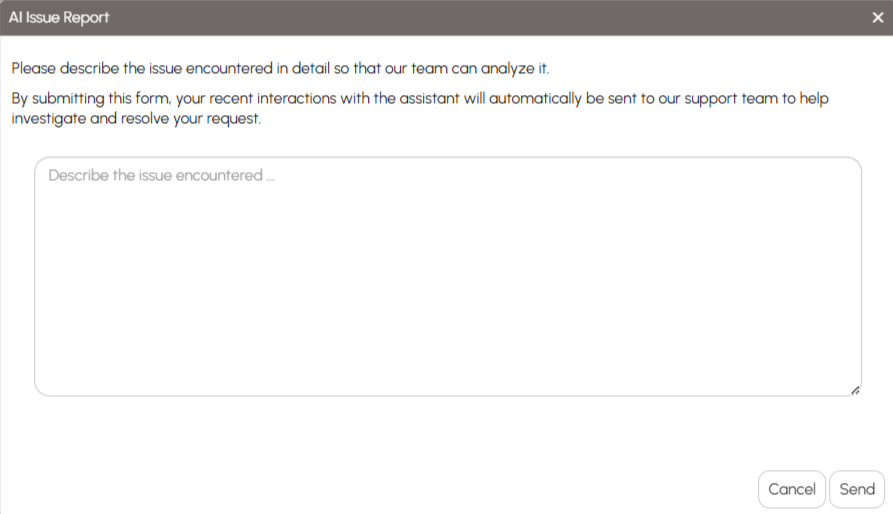


Reports can concern two types of issues:
Errors in the AI response
These are issues related to the response generated by the AI model. For example:
- incorrect response;
- irrelevant response;
- incomplete response;
- misunderstanding of the request.
These behaviours are related to how the AI model operates. They cannot necessarily be corrected by Provacy, but reporting them helps identify them and track how often they occur.
Zeus functionality errors
These are issues related to the assistant’s functionality or its integration into Provacy. For example:
- incorrect or incorrectly displayed data;
- an error when creating or modifying a record;
- a technical issue.
These issues can be analysed and, where appropriate, resolved by the Provacy team.
Describe the issue in detail.
In the description field, provide as much detail as possible, including:
- what you asked Zeus to do;
- the response or behaviour you received;
- what you expected to happen;
- the record or action concerned, where applicable.
Tip: before submitting the report, make sure that the issue can be identified from your recent interactions with Zeus.
By submitting the form, your recent interactions with the assistant are automatically sent to the Support team to facilitate the analysis and handling of the report.